Cut out the part you don't want
EDIT A CLIP FROM FIRST CUT TO DOWNLOAD · PART 1 OF 8 · UPDATED 17 OCTOBER 2026
Remove a pause or a mistake from the middle of your clip.
The Editor works on a laptop or desktop.
Steps
-
Press Play (Space) and watch the preview while the playhead moves along the timeline.
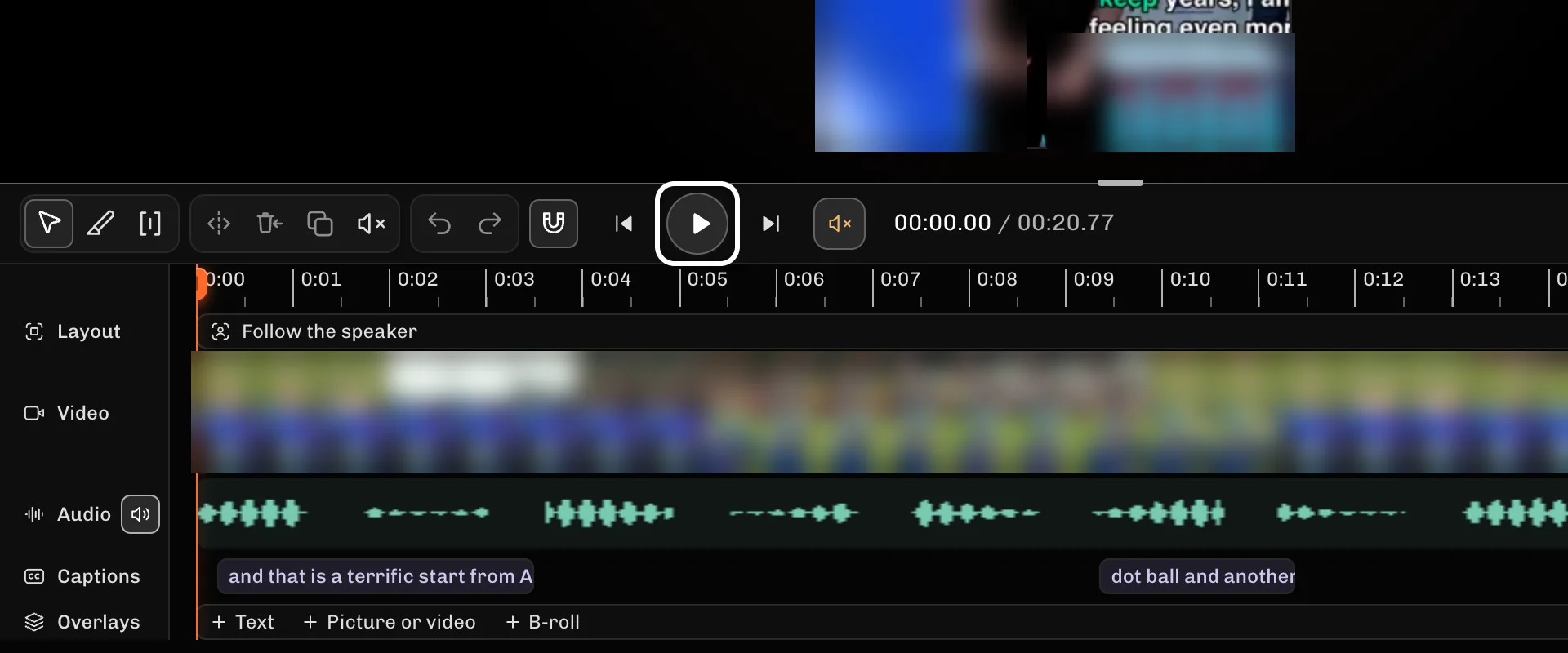
-
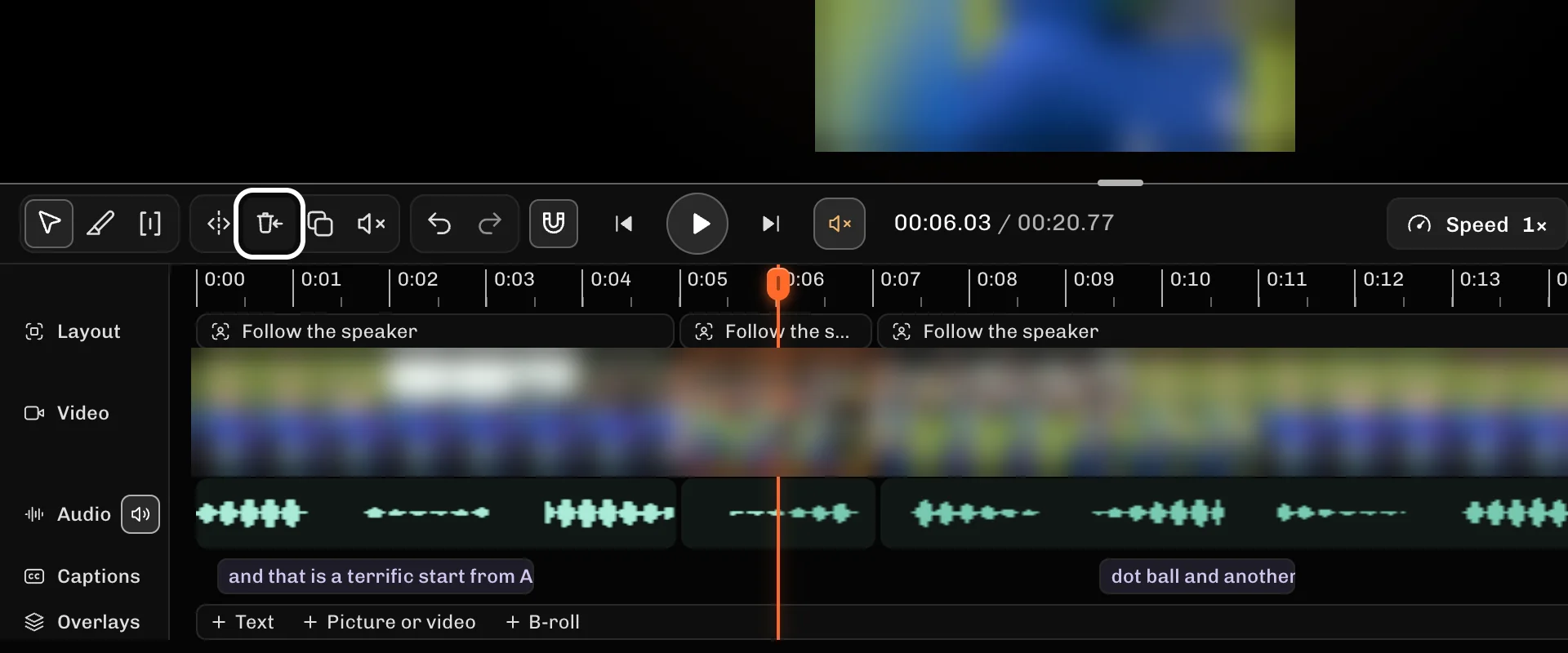
Where the part you don't want begins, press Split at the playhead (S).
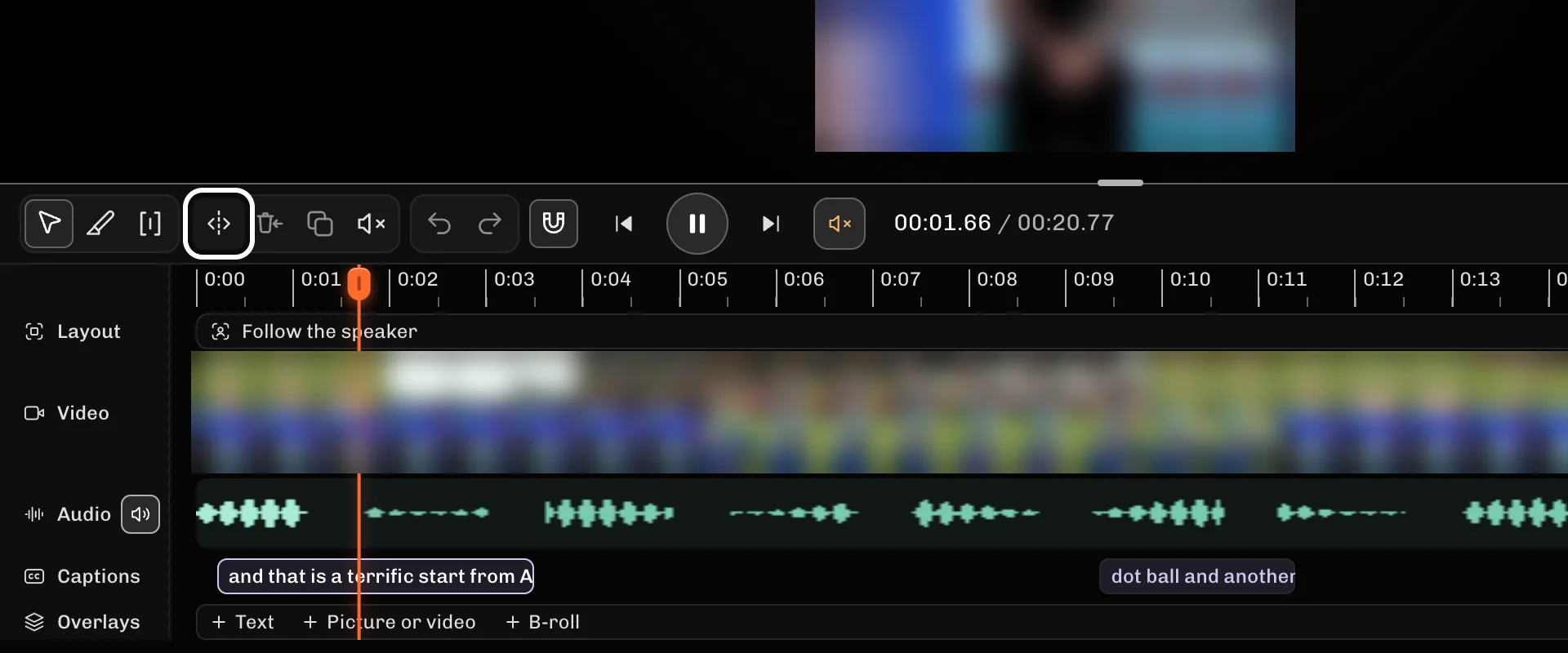
-
Where that part ends, press Split at the playhead (S) again.
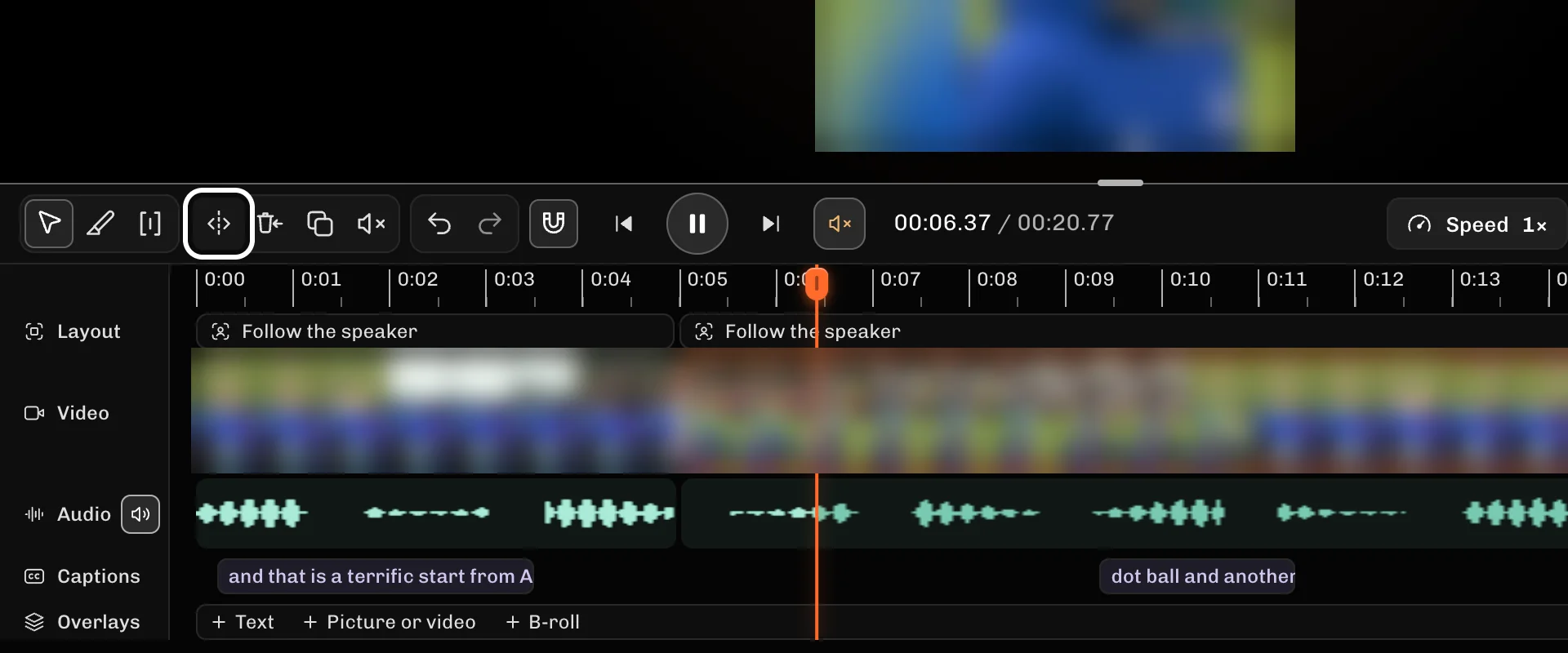
-
Select the piece between your two cuts.
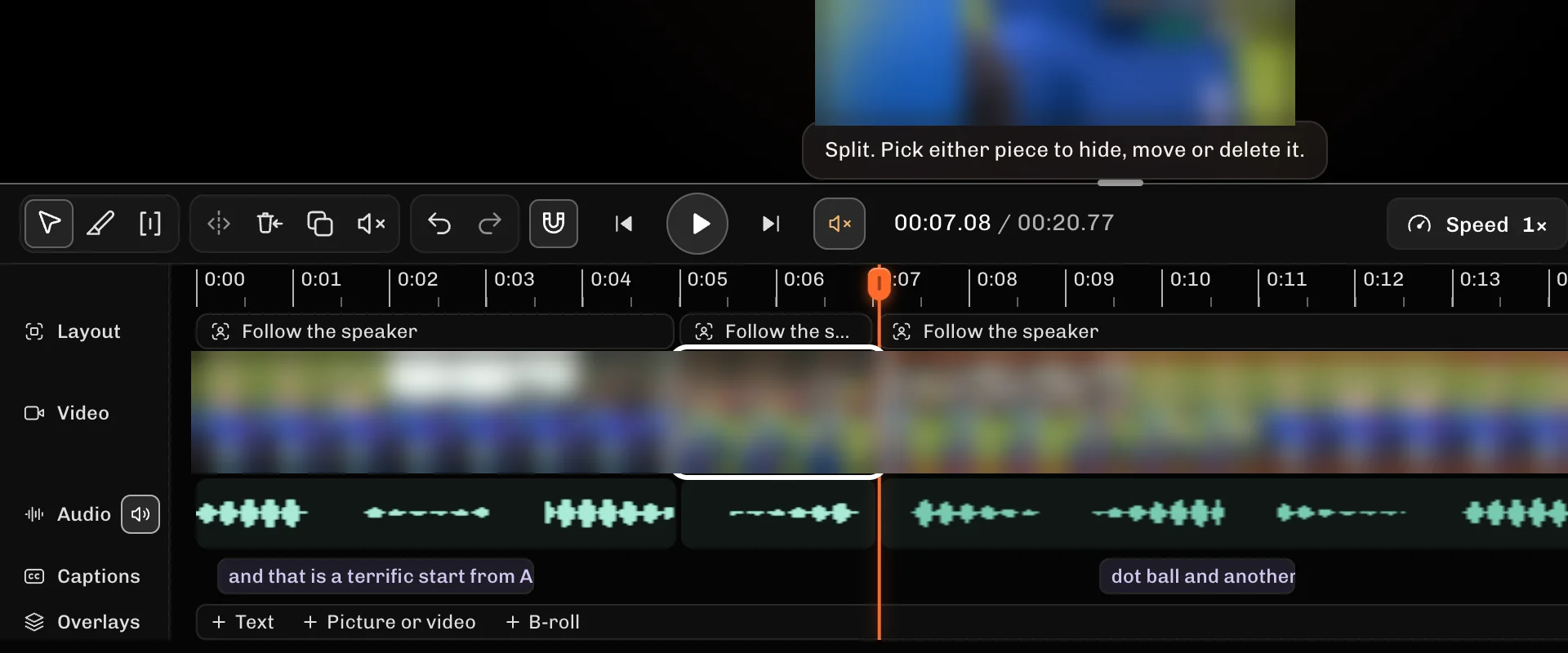
-
Select Ripple delete to remove it and close the gap.
If something goes wrong
- Cut the wrong place? Press Undo (⌘Z or Ctrl+Z), then split again.
- If Split at the playhead is greyed out, move the playhead onto the clip, away from its very start or end.
- Select the piece between the cuts before you remove it. Ripple delete takes out only the piece you picked.
More guides
- Next: Download a clip that's ready to post
- Start your clip on its best moment
- Fix wrong words in your captions
- Change how your captions look
- Keep your speaker in frame
- Add B-roll or a picture over your clip
- Add music and keep your voice clear
- All guides
Try it in ReelFyre
ReelFyre is in a private, invite-only test. Request an invitation to try these steps yourself, or read how pricing and access work.
ReelFyre uses YouTube API Services. By using ReelFyre, you agree to be bound by the YouTube Terms of Service. The Google Privacy Policy applies alongside ours.