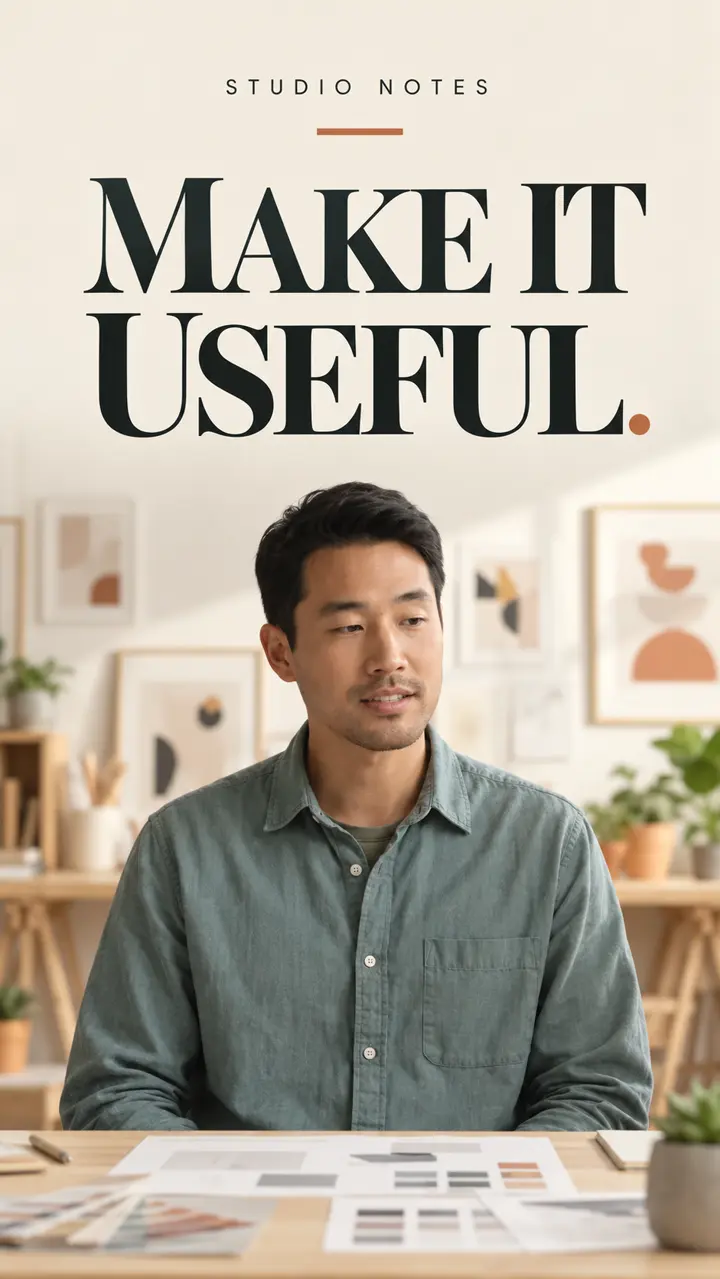


YOUTUBE
Start before you feel ready
A reminder to share your work before it feels perfect.
#CreativeProcess #KeepCreating
YOUR SHORT-FORM STUDIO
Find clips with AI, edit them your way, and prepare the cover and posting copy. Publish or schedule to YouTube and Instagram from one workspace.
Private beta · Applications reviewed before access
AI does the first pass. You keep the final say.
 YouTube Shorts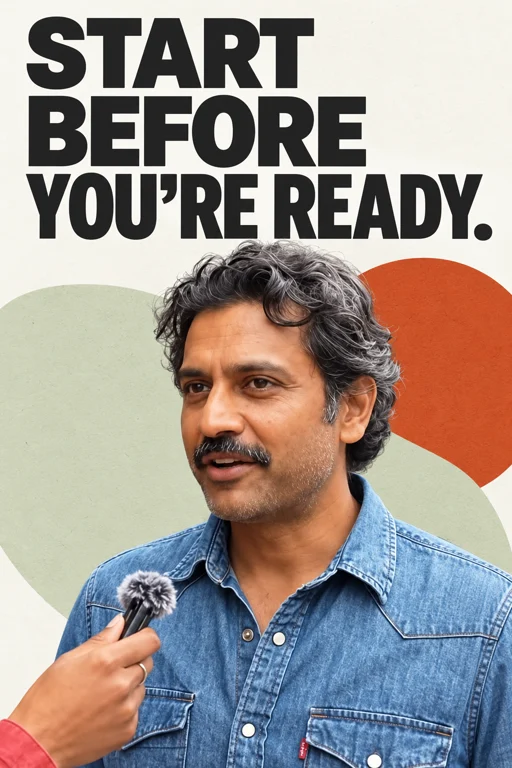
Start before you feel ready
A reminder to share your work before it feels perfect.
Waiting to feel ready? Share the work. Let the next version be better.
Start before you feel ready
Nov 1 · 6:00 PM IST
Your recording becomes a starting point for your next reel.
Looping sample footage · Muted for preview.
01 / START WITH YOUR RECORDING
Upload a podcast, interview, lesson or product recording. Let AI find highlights, bring related passages together, or choose the timestamps yourself.
“What’s the most overrated
productivity advice?”
One short conversation. Explore what you can make from it.
02 / CHOOSE HOW TO CREATE
FIND THE MOMENT
Give AI a brief and a target length. Review its suggestions, then take your pick into the editor.
“Find the funny take on productivity.”
CONNECT THE PARTS
Bring related passages together around your brief. Review the sequence before you make it yours.
YOU KNOW THE MOMENT
Set the start and end below. The preview plays just that passage.
4.45 seconds selectedThen shape it in the editor.
YOUR CLIP. YOUR CHOICES.
Choose the captions, shape the title, change the frame and bring your own music. Get the words right. Lead with the moment you choose.
Switch the caption look. Keep your own voice.



Make the headline, colour and treatment yours.
A close-up, a shared frame or the whole picture.
Upload, replace and mix a track beneath the voice.
feel steady
Select a word to correctFix a caption. See the change in your video.
A short teaser first. Then the main clip.
02 / MAKE THE CUT YOURS
Move beyond the first cut. Frame every speaker, build your sequence and layer in the details that make it yours.
Preview could not load.
Original recording → three-person layout
FramingStart with the original recording.
Illustrative editor walkthrough with rendered sample footage · Captions use ReelFyre’s Word Pop preset.
Trim, split and rearrange on the timeline. Play it back and undo changes as you go.
Style your captions, adjust the crop and give suitable clips captions behind the subject.
Save your fonts, colours, logo and caption style for the next reel.
Quick edits on your phone. The full timeline on your computer.
03 / AI FOR THE FINAL DETAILS
Give your reel a cover and words that introduce it. Let AI prepare the first draft for YouTube and Instagram. Review it, make it yours, then choose when to share.
A cover that sets the scene.Explore AI cover options for your reel.
The right words for each platform.YouTube titles, descriptions and tags. Instagram captions and hashtags.
Your review. Your final say.Edit any suggestion before you share.
Download your chosen cover and apply it using the platform’s supported cover controls.
A first draft. Make it sound like you.
04 / FINISH THE JOURNEY
Review the details, choose your accounts and decide when to share. Post now, or book a time and see your next posts together in Calendar.
Your finished MP4 is always yours to download.
WHERE THIS REEL GOES
Make something people can use
Choose at least one destination to continue.
WHEN IT GOES OUT
Ready when you are.Send the reviewed reel to your selected destinations.
YOUR CALENDAR
MON 02
Room for your next idea.TUE 03
WED 04
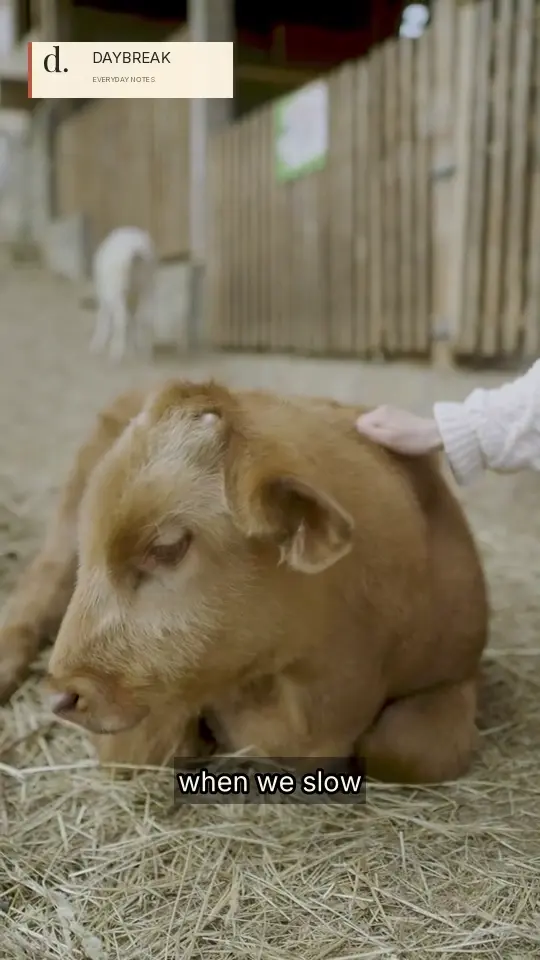 A slower kind of day10:00 AM · Instagram
THU 05
FRI 06
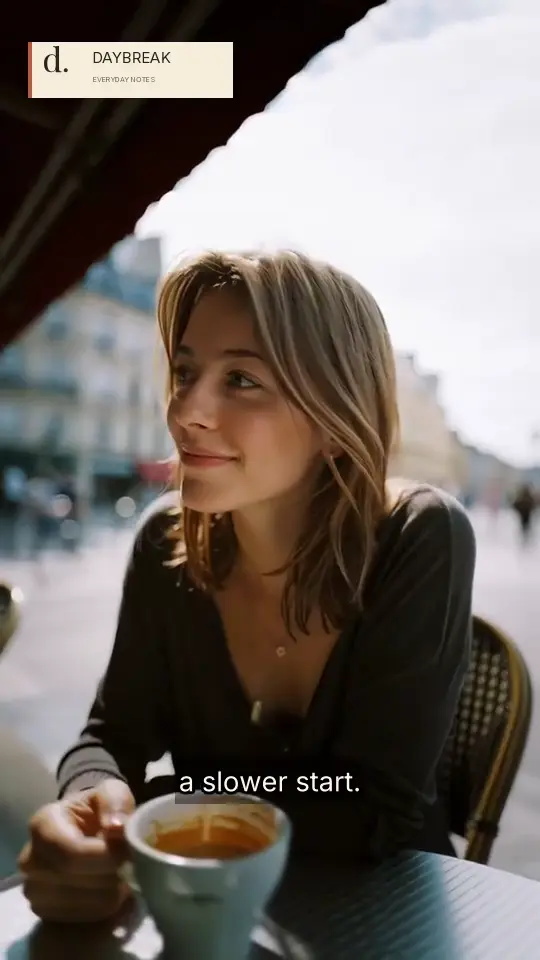 A slower start10:00 AM · Instagram
SAT 07
SUN 08
POST NOW · EXAMPLE RESULT
The reviewed reel would enter the publishing queue.
Each platform processes it before it goes live.
Illustrative workflow · Demo accounts and example bookings · No posts are sent from this page.
Direct publishing requires eligible connected accounts and platform permissions. Cover controls vary by destination.
ALREADY EDITED? START HERE.
Start with a video you’ve already edited. Apply your saved logo, fonts and colours, then move straight into the cover and posting copy. Different clips. The same signature.
App starter themes · Scripted on-screen text on silent footage · No generated speech.
TRY THE WHOLE WORKFLOW
Bring a recording, or start with an edited reel. Find your clip, make it yours, prepare the details and choose when to share.
Tell us what you want to create.
Applications are reviewed before access.
MORE TO COME
Coming soon · Not included in the November 1 release.
BEFORE YOU GET STARTED
From your first upload to your next post.
Here’s what to expect.
Upload an MP4 or MOV recording—a podcast, interview, lesson or product video. Already have an edited reel? Bring it straight into branding and post preparation.
Use footage you own or have permission to use. YouTube video imports are currently paused.
Explore the starting pointYou choose the final cut. Review AI suggestions, correct and style captions, adjust framing, change the title bar and add your own music. Use the full editor to trim, split, rearrange and layer your sequence.
Quick edits on your phone. The full timeline on your computer.
Explore the full editorA YouTube title, description and tags. An Instagram caption and hashtags. And cover or thumbnail options to introduce your reel. Review the suggestions and change anything before sharing.
Download your chosen cover and apply it using the platform’s supported cover controls.
See the posting kitChoose either platform or both, review the details for each, then post now or schedule for later. Calendar brings your upcoming posts together. You can also download the finished MP4 and upload it yourself.
Direct publishing depends on eligible connected accounts, platform permissions and approvals. Available destinations and settings are shown in the app.
See publishing and schedulingYou choose the accounts and confirm posting or scheduling. A scheduled post can run while you’re away—you don’t need to keep ReelFyre open.
If you turn on a posting schedule, approving a clip can book the next available slot. Review, move or cancel upcoming bookings in Calendar.
Explore the Calendar exampleCredit use depends on the action. Check the estimate shown before you start, and review your available balance in the app.
During private beta, credits are granted by the team. Contact us if you have a question about your allowance.
Ask about beta creditsRequest early access and tell us what you want to create. We review applications before inviting creators and small teams into the private beta. If approved, we’ll email your login details.
Applying doesn’t automatically grant access. Already invited? Use Log in.
Request early accessCREATED WITH REELFYRE
A place for real clips created by people using ReelFyre. Creator videos and credits will appear here.
Creator credit to be added.
Creator credit to be added.
Creator credit to be added.
Showcase reserved for actual creator work, with permission and attribution.
YOUR FOOTAGE. YOUR FINAL SAY.
Find the clip. Make it yours. Let AI help with the final details,
then choose when to share.
Private beta · Applications reviewed before access