Change how your captions look
EDIT A CLIP FROM FIRST CUT TO DOWNLOAD · PART 5 OF 8 · UPDATED 17 OCTOBER 2026
Pick a caption style, size and position, then apply them to your clip.
The Editor works on a laptop or desktop.
Steps
-
Select Captions to open the caption styles.
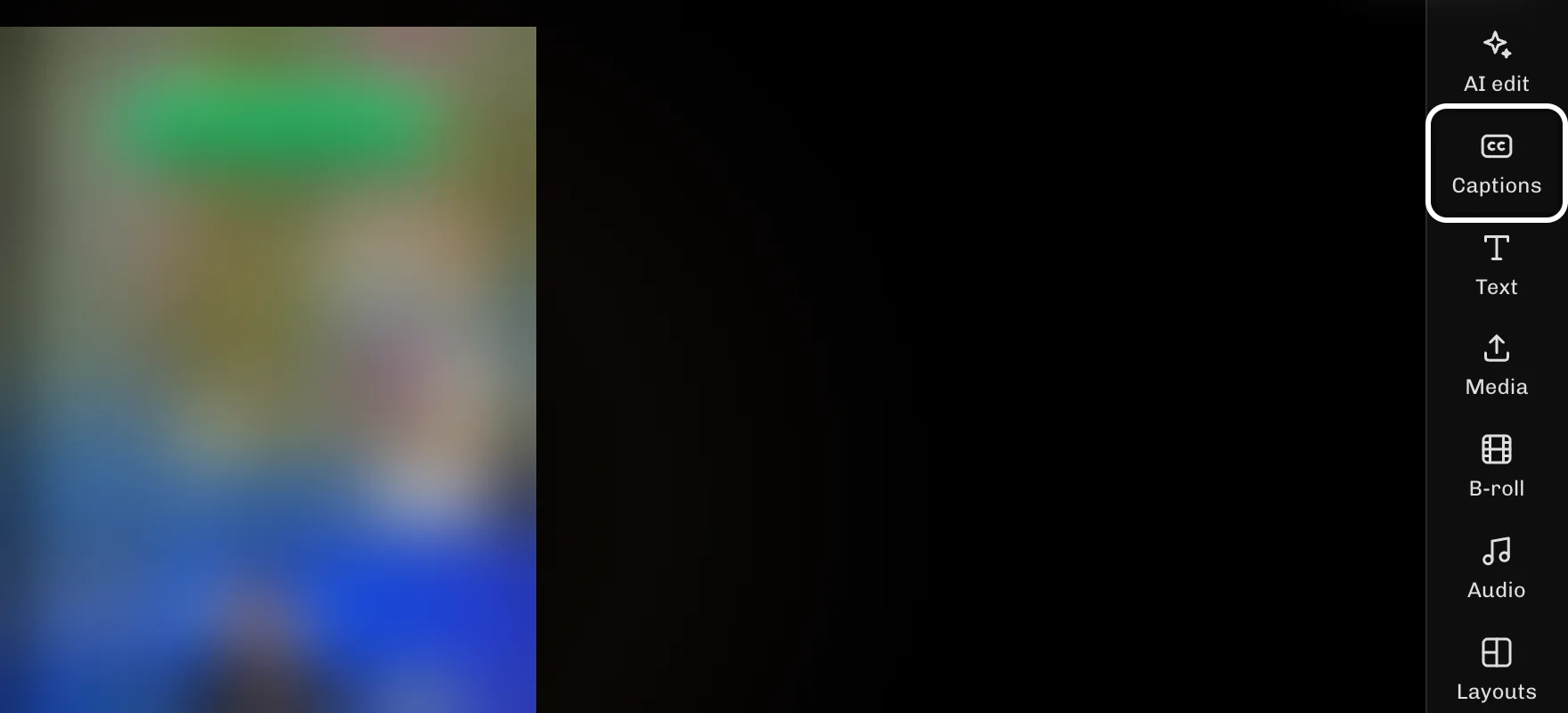
-
Select Bold yellow to try that style on your words.
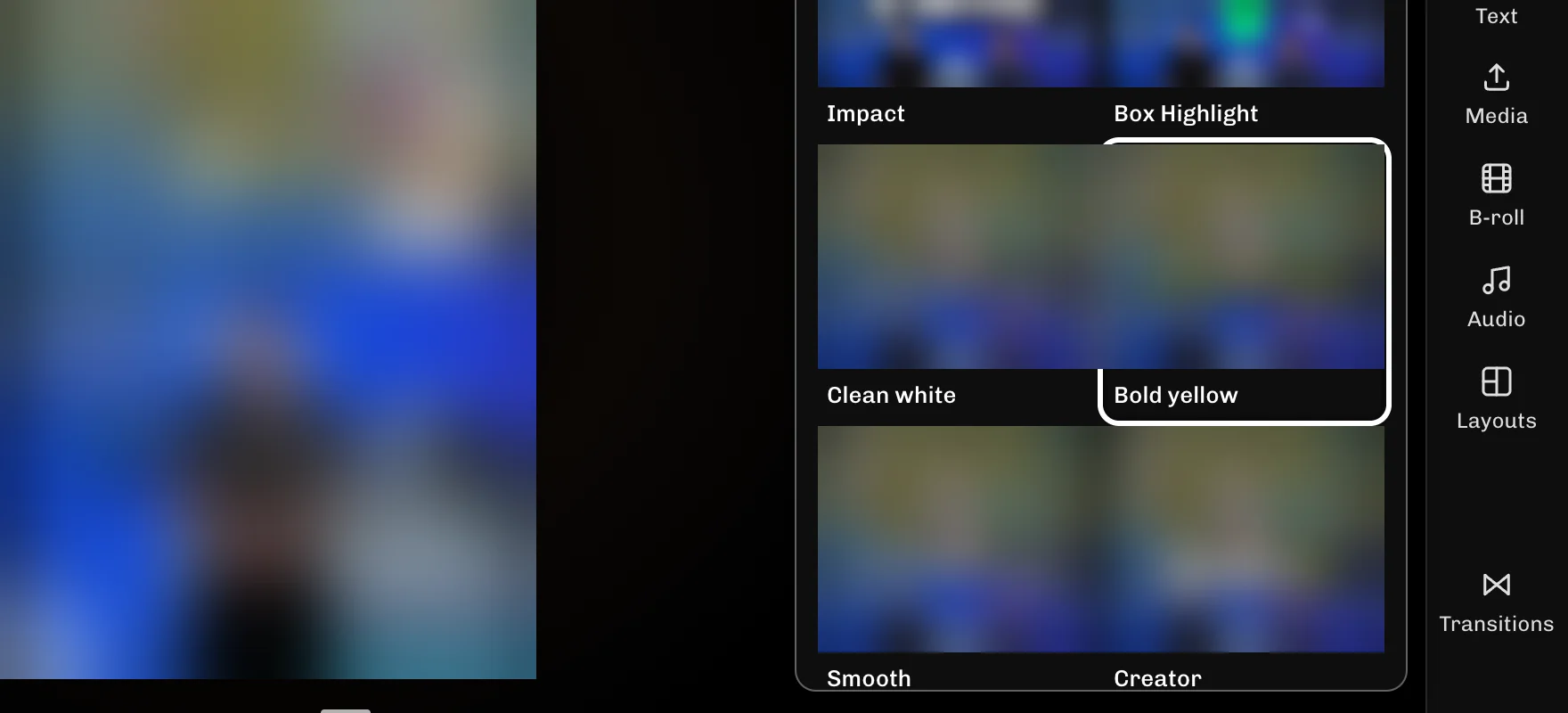
-
On the Font tab, select Large to make the words bigger.
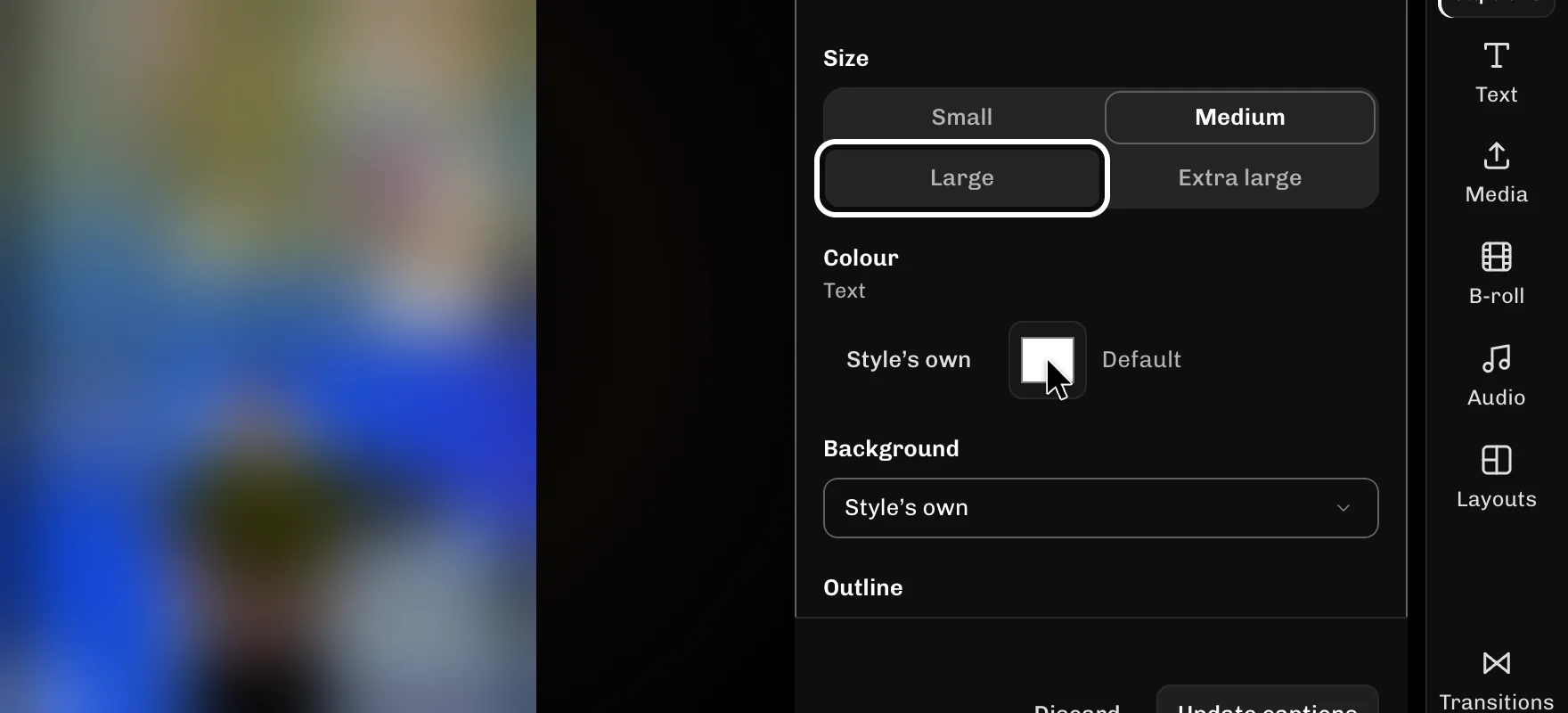
-
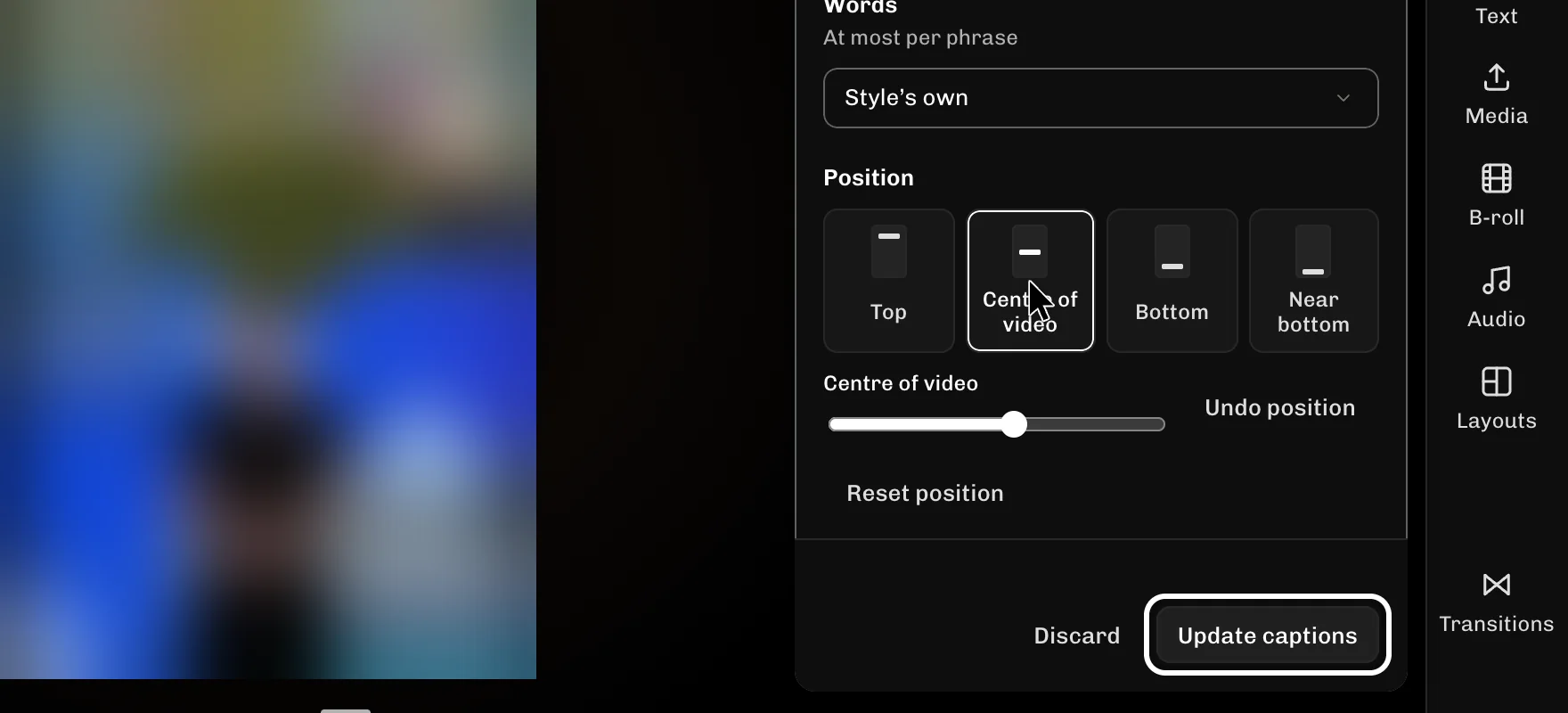
Select Centre of video to place the words in the middle of the clip.
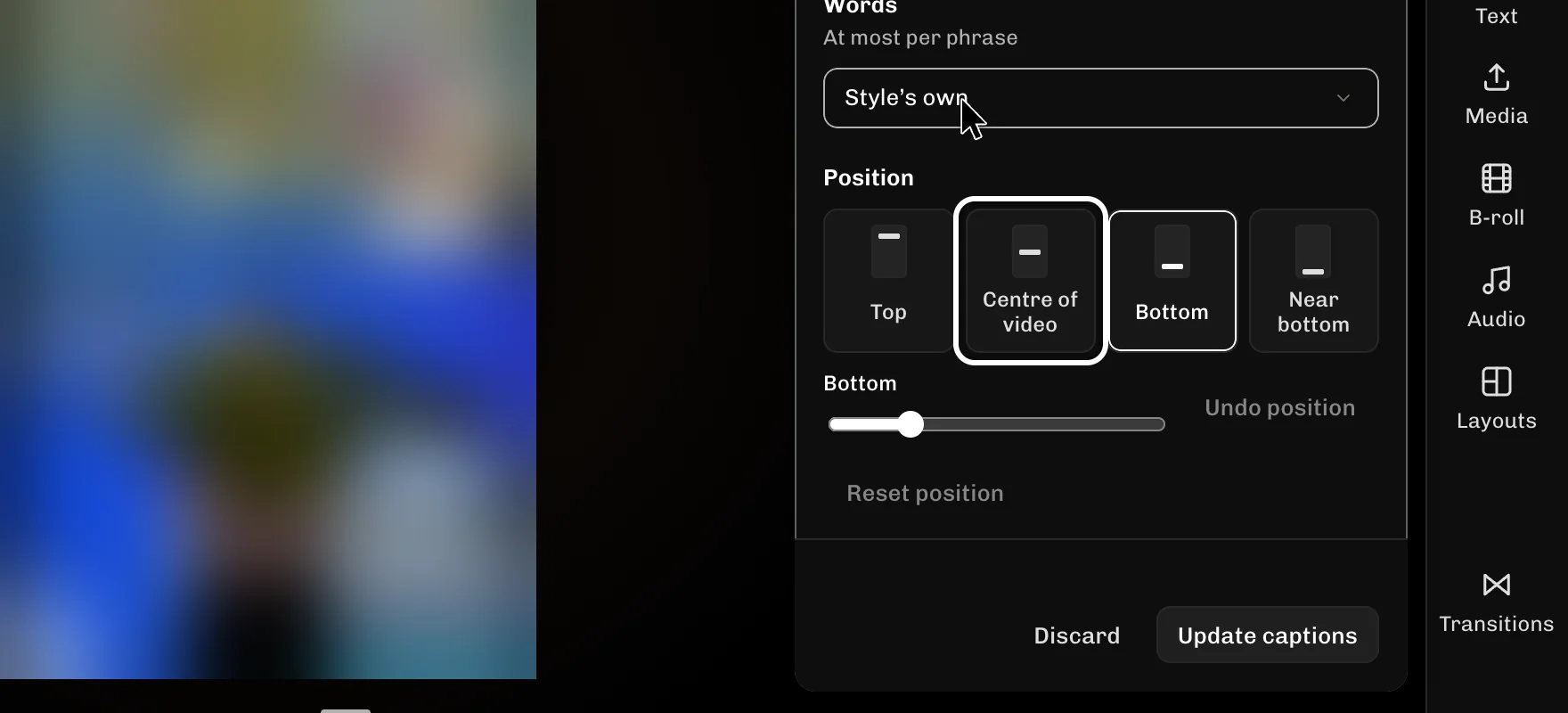
-
Select Update captions to apply the new look to your clip.
If something goes wrong
- If Update captions is not showing, change a style, size or position first. It appears after your first change.
- Select Discard to drop your changes and go back to the captions the clip has now.
- If Behind subject is greyed out, this clip cannot use it. The other caption styles still work.
More guides
- Next: Keep your speaker in frame
- Cut out the part you don't want
- Download a clip that's ready to post
- Start your clip on its best moment
- Fix wrong words in your captions
- Add B-roll or a picture over your clip
- Add music and keep your voice clear
- All guides
Try it in ReelFyre
ReelFyre is in a private, invite-only test. Request an invitation to try these steps yourself, or read how pricing and access work.
ReelFyre uses YouTube API Services. By using ReelFyre, you agree to be bound by the YouTube Terms of Service. The Google Privacy Policy applies alongside ours.