Hide a section without deleting it
QUICK TIP · UPDATED 17 OCTOBER 2026
Leave a section out of the clip but keep it on the timeline.
The Editor works on a laptop or desktop.
Steps
-
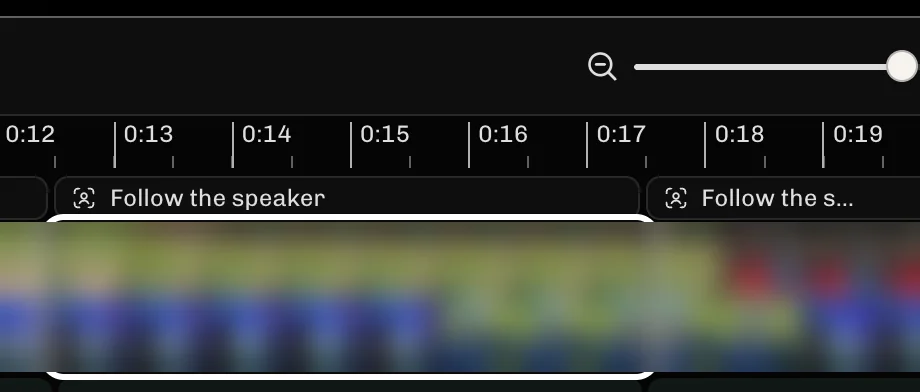
Select the section you want to hide.
-
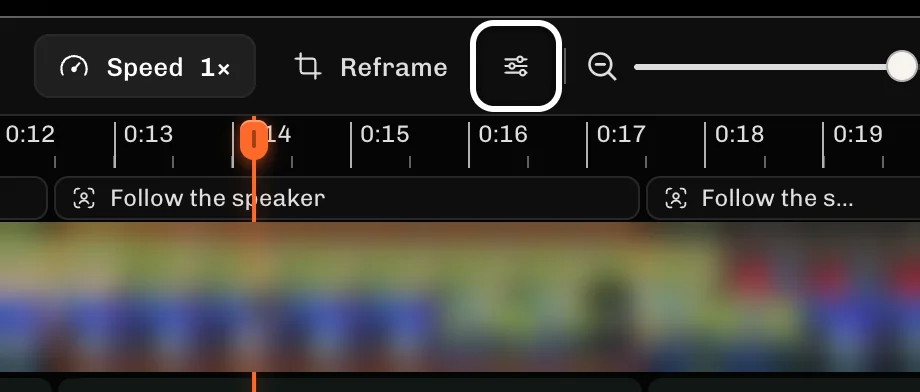
Select Trim, hide, delete and more to open the section's panel.
-
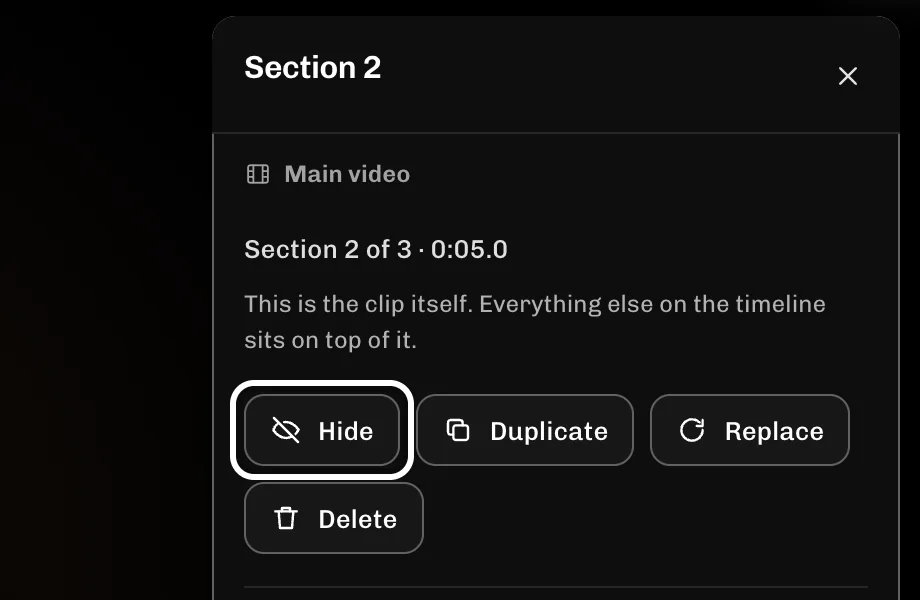
Select Hide to leave the section out of your clip.
If something goes wrong
- A hidden section stays on the timeline, but its picture and its sound are both skipped.
- Select Keep in the same panel to bring the section back.
- If you cannot find Hide, your clip has only one section. Select Split at the playhead (S) to make more.
More guides
- Next: Move a section earlier or later
- Undo a mistake
- Slow down or speed up a section
- Add text over the video
- Detach sound from B-roll
- Zoom the timeline to fit
- All guides
Try it in ReelFyre
ReelFyre is in a private, invite-only test. Request an invitation to try these steps yourself, or read how pricing and access work.
ReelFyre uses YouTube API Services. By using ReelFyre, you agree to be bound by the YouTube Terms of Service. The Google Privacy Policy applies alongside ours.
SandMatter LLP · hello@sandmatter.com