Move or cancel a scheduled post
CALENDAR · UPDATED 17 OCTOBER 2026
Change when a post goes out, or stop it.
Steps
-
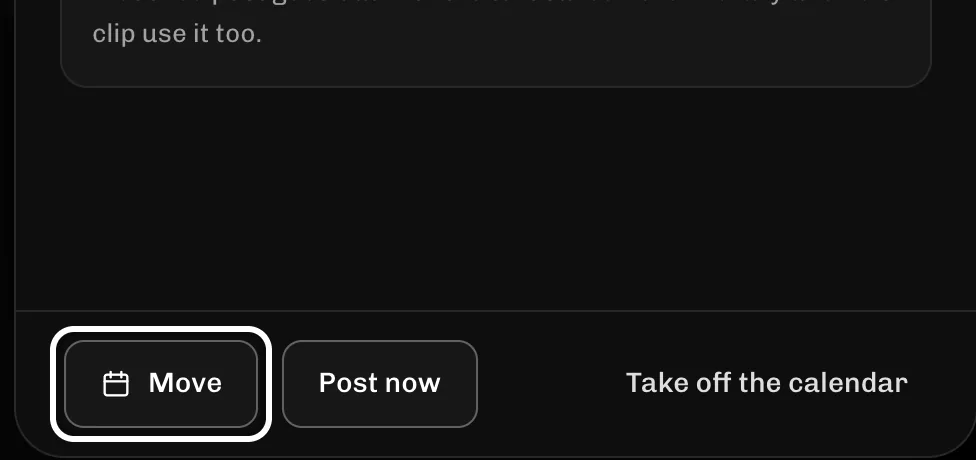
In the post's panel, select Move to change when it goes out.
-
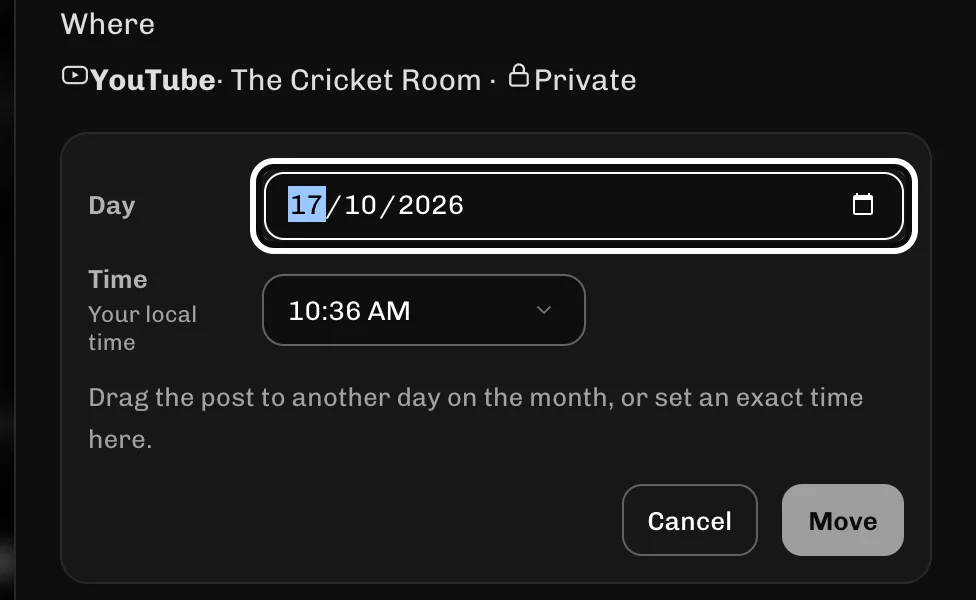
Enter the new date in Day.
-
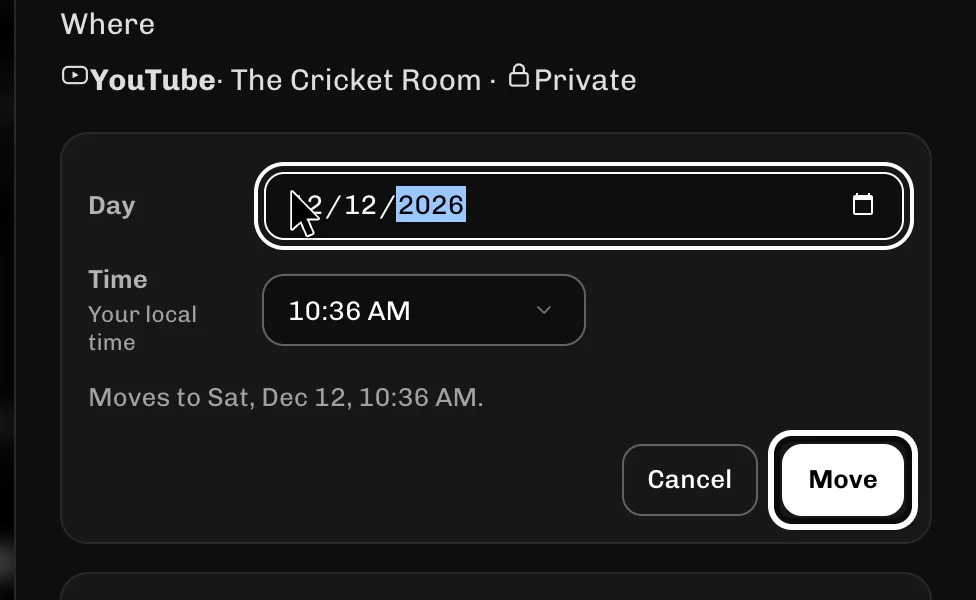
Select Move to save the new time.
-
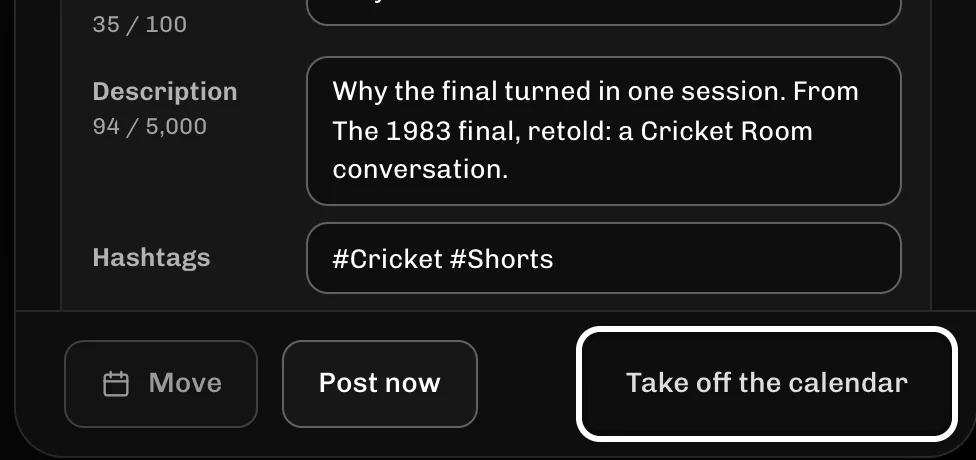
To stop the post instead, select Take off the calendar.
If something goes wrong
- Select any booked post on the calendar to open its panel.
- Change Time in the same panel to move the post to a different hour.
- A post that already went out cannot be moved.
More guides
Try it in ReelFyre
ReelFyre is in a private, invite-only test. Request an invitation to try these steps yourself, or read how pricing and access work.
ReelFyre uses YouTube API Services. By using ReelFyre, you agree to be bound by the YouTube Terms of Service. The Google Privacy Policy applies alongside ours.
SandMatter LLP · hello@sandmatter.com